AI: session chat and the assistant
Transcription, titles, summaries, chat and search use an AI service. Use your own key (Settings › AI: paste it under API key and press Save key; Show lets you check what you pasted, and Replace key puts the cursor in the field), or sign in and use the credits that come with your plan. Without either, everything else still works.
Session chat
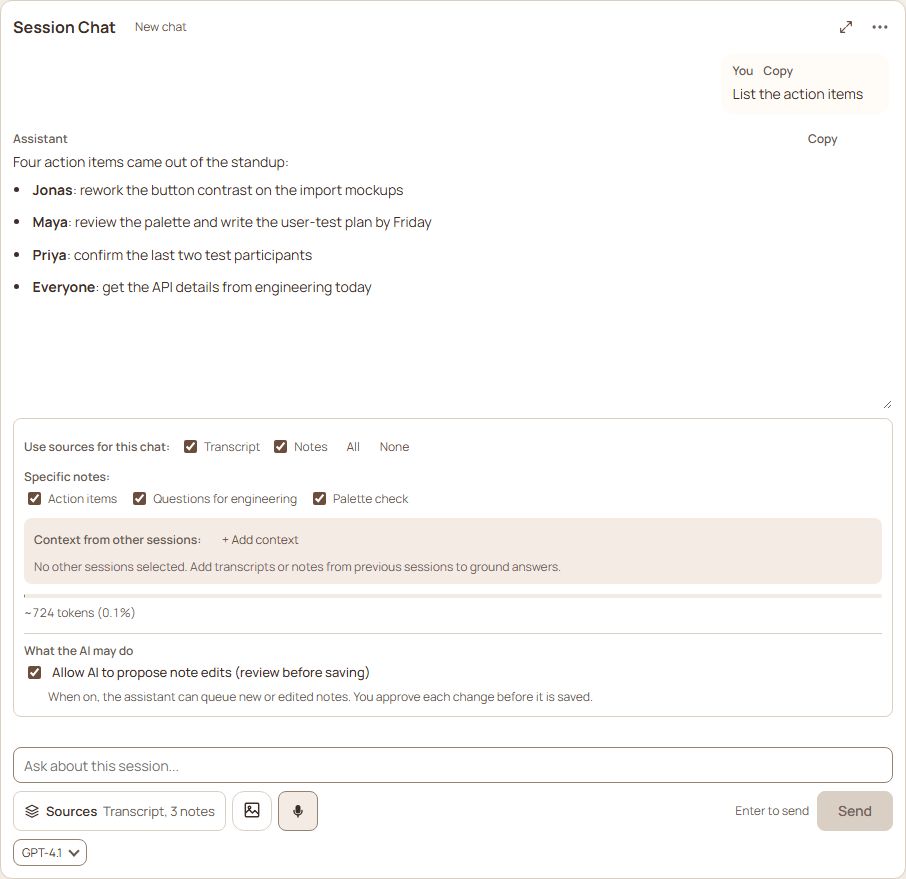
The chat at the bottom of a session answers questions about that session.
- Under the question box, in one row, are Sources, a picture button, the microphone and Send, as in the assistant. Sources names what the next question will read, for example Transcript, 3 notes, or No sources; a "!" on it means what is picked is close to what the model can read. Before the first question the chat is one sentence and three questions to tap (a tap fills the box and sends nothing); in a session with nothing in it yet, it says there is nothing to ask about. The history appears above the box once you ask.
- Sources opens what the chat reads: the Transcript, the Notes, or only some notes (Specific notes, a list that scrolls when there are many). All and None tick or clear everything. A source is ticked as soon as it has something in it, so a note you write after opening the session is read without reopening it; one you untick stays unticked.
- A note's ⋯ menu has Ask the chat about only this note, which ticks just that note.
- Context from other sessions adds transcripts and notes from other sessions: + Add context, or type
@in the question and choose a session, a folder or a note. - The picture button adds up to four pictures to the question. Paste or drop them in too. They go with that question only; the saved message keeps their names.
- The microphone dictates the question; while it records, the button says Recording with the time and Stop, and pressing it stops and transcribes.
- Enter sends on a computer, Shift+Enter starts a new line, and Ctrl+Enter (⌘+Enter) sends on any device. On a phone or tablet Enter starts a new line and Send sends. While an answer is coming Send is Stop: it ends the question at once and what you have typed in the box stays. A question that failed or that you stopped has Try again under the messages. Edit and Re-run on your own question are always shown on a phone, and appear on a computer when you point at it or tab to it.
- Allow AI to propose note edits (under What the AI may do in the Sources panel, apart from what it reads) lets the answer include a new note or an edit to an existing one. You always see the change first and approve it; nothing is saved without you. A change that could not be applied because the note changed since says so on its own card, with the reason and Retry, and the head of the review counts how many were not applied: there is no dialog over the cards. If Retry fails too, the card says why under the reason. The review has one solid button: Accept all, which applies every pending change except deletions, and says Accept 2 selected once you change the ticks. The first change and any deletion start open and the rest are one tap away; a change you have dealt with folds away. A proposed deletion of a note or a whole session starts unticked and is only included if you tick it; each one is accepted on its own card with Accept and delete note or Accept and delete session.
- Ask "how many" about a long note (items, tasks, how many are done) and the chat counts them exactly rather than guessing. The step line reads Counting the items in your notes. It tells you which reading it used (for example, an item is one bullet at any depth, and done means a checked box or a word such as PASSED), and asking again with another definition recounts. A question never queues a change. To add to a very long note, the chat appends the new text at the end instead of rewriting the note.
- A session can have several chats (New chat, and a list at the top to switch between them). The chat's ⋯ menu has Copy chat, Copy all chats and Delete this chat; Copy on an answer copies just that one. The model list under the box chooses which model answers, with what each one is for. The sources an answer used are listed under it as Used in this answer.
- A chat shows what it cost only when Show what AI cost on each session is on in Settings › AI usage: then each answer shows its cost and the chat shows its total.
The knowledge assistant
The round button at the bottom right (or ⌘/Ctrl+Shift+K) opens the assistant. It searches everything you have saved (sessions, notes, chats and transcripts) and answers with links to where it found things.
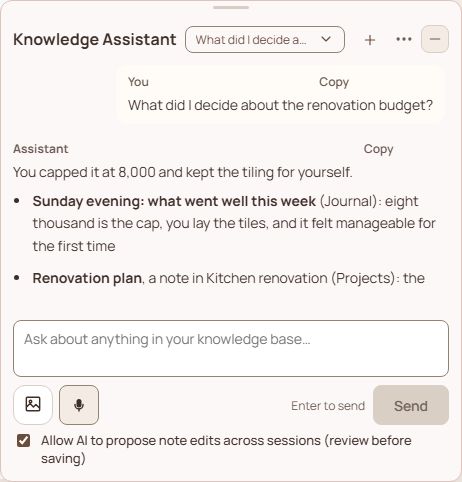
- Ask in your own words. Choose a link in the answer to open that note or session at the right place.
- The header is one row: the title, your chats, + (a new chat), a ⋯ menu with Full screen and Copy chat, and Minimize. The chat menu lists your conversations; the ✕ on a row deletes that chat after asking. An empty chat offers questions to tap.
- It takes pictures and your voice, and sends, stops and tries again the same way as the session chat: Enter sends on a computer, Shift+Enter starts a new line, Stop ends a question that is running.
- With Allow AI to propose note edits across sessions on, it can propose edits to any note. You approve each one.
- While you are recording, the assistant button shows a red dot, even when the panel is minimized, so you can always get back to stop it.
What it costs
- A session can show its AI cost, and the cost breakdown lists every call. It is hidden until you press Show AI cost on the session (next to its source and status) or tick Show what AI cost on each session in Settings › AI usage; the two are one switch, and the sidebar's rows and its AI this month line follow it too.
- Settings › AI usage adds it up across your library, leading with this month's cost.
- Settings › AI lets you choose a default model for new session chats and for the assistant, switch semantic search off to save cost, set how many searches the assistant may run per question and how many sessions it compares (type any number; it is kept to the allowed range when you leave the field), and set how voice-to-text behaves. Voice-to-text tells you at once, before the mic opens, when there is no AI key or plan to transcribe with. Settings › Recording holds the defaults a new recording starts with and whether the screen stays on while you record. Keep the screen on while recording is on by default: a phone that locks mid-recording can stop it, and it applies to every recording and voice-to-text mic. Turn it off to save battery; it applies from the next recording.
Without AI set up
Recording, saving, notes, files, folders and search all work without AI, with no account. These use AI: transcripts, subtitles, AI titles and summaries, text clean-up, the session chat and the assistant, and voice to text.
If you ask for one of them and have no AI (no key of your own, and no plan), you see an AI needed message that says what it needs and gives you two ways forward: Add my own key (paste a key from an AI provider in Settings › AI; no account needed, you pay the provider directly) or Sign in or see plans, which opens the sign-in dialog right there (a plan includes AI credits). Press Not now to carry on without it. Signed out, the sidebar also has a Sign in button at the bottom, so you never need Settings to sign in.
In the session chat and the assistant you do not have to find this out by asking: with no AI, a line above the question box says AI is not set up and offers the same two buttons, Add my own key and Sign in or see plans. It goes away as soon as you add a key or sign in, and Send says why it will not answer yet.
A recording or upload made with transcription on is still saved: it just has no transcript, and the message tells you so. Set up AI later and you can make the transcript from the file's ⋯ menu.
Connect other AI apps (MCP)
Claude, Cursor and other AI apps can read your library over MCP, a standard way for an AI app to look things up. It is read-only: they can read your sessions, notes, chats, transcripts and files, and cannot change or delete anything. It needs your library to be in the cloud (see Where your library lives), so it comes with every paid plan. The AI app does its own thinking, so reading your library this way spends none of your AI credits. The one exception is watching a video, below.
- The address is
https://howyousound.com/pro/v1/mcp`. In Claude Code:claude mcp add --transport http howyousound https://howyousound.com/pro/v1/mcp`, then/mcpand choose Authenticate. Cursor, Claude Desktop and claude.ai take the address as a custom connector. - A browser window opens so you can sign in to How You Sound and press Allow. Your password never goes through the AI app. The app can only see your own library.
- What it can do: list and search sessions, read a session (notes, transcript, chats, files), list and read its files, and read a folder.
- Give it a link. Paste a session's address (
…/session/SESSION-ID, or…/session/SESSION-ID/note/NOTE-IDto start at one note) and it reads that session. Paste a folder's address (…/folder/Work/Calls) and it reads everything in the folder: its sessions, its single notes, and the folders inside it. Open a folder and press Copy link, or copy the address from the browser. - Anything you hide from AI apps (a session, or a note) is invisible to it, as if it were not there.
- It can watch a video. Give it the link to a public video or post (YouTube, X, Instagram, Facebook, TikTok, Vimeo and similar) and it reports what the video shows and says: a summary, the text on screen, the scenes, and the spoken words. It can do the same for a video in your library, using the session's transcript when there is one. Reading a video takes up to a few minutes, so the app may say it is still being read and ask again. This spends AI credits (roughly a credit a minute of speech plus a few for the pictures); a video already read is answered again for free. Private posts and sites that refuse the server cannot be read.
AI and your privacy
Before the first time anything of yours goes to an AI service, the app asks once: Send this to an AI service? says what is sent (the recording, or the transcript text, notes or question you chose), to whom (OpenAI through the How You Sound server, or the provider you chose with your own key) and what for, with a link to the privacy policy. Allow and continue sends it and the app does not ask again; Not now sends nothing and leaves you where you were. Allowing the server and allowing your own key are two separate answers, and choosing another provider asks once more. Settings › AI shows when you allowed it and has Withdraw, after which the next AI use asks again. Signed in, the answer follows your account to your other devices.
Only what a request needs is sent to the AI service. Items hidden from AI apps and locked sessions are kept out of its reach: see Start here and Organize and find. Settings › AI agents explains how to point an AI coding assistant at your library folder.