Notes: everything you can write
This note shows every kind of formatting, drawn the way it looks in your own notes. Open any line to see what was typed.
Text
Plain text, bold, italic, crossed out, highlighted and inline code, all in one line.
- Type the marks yourself:
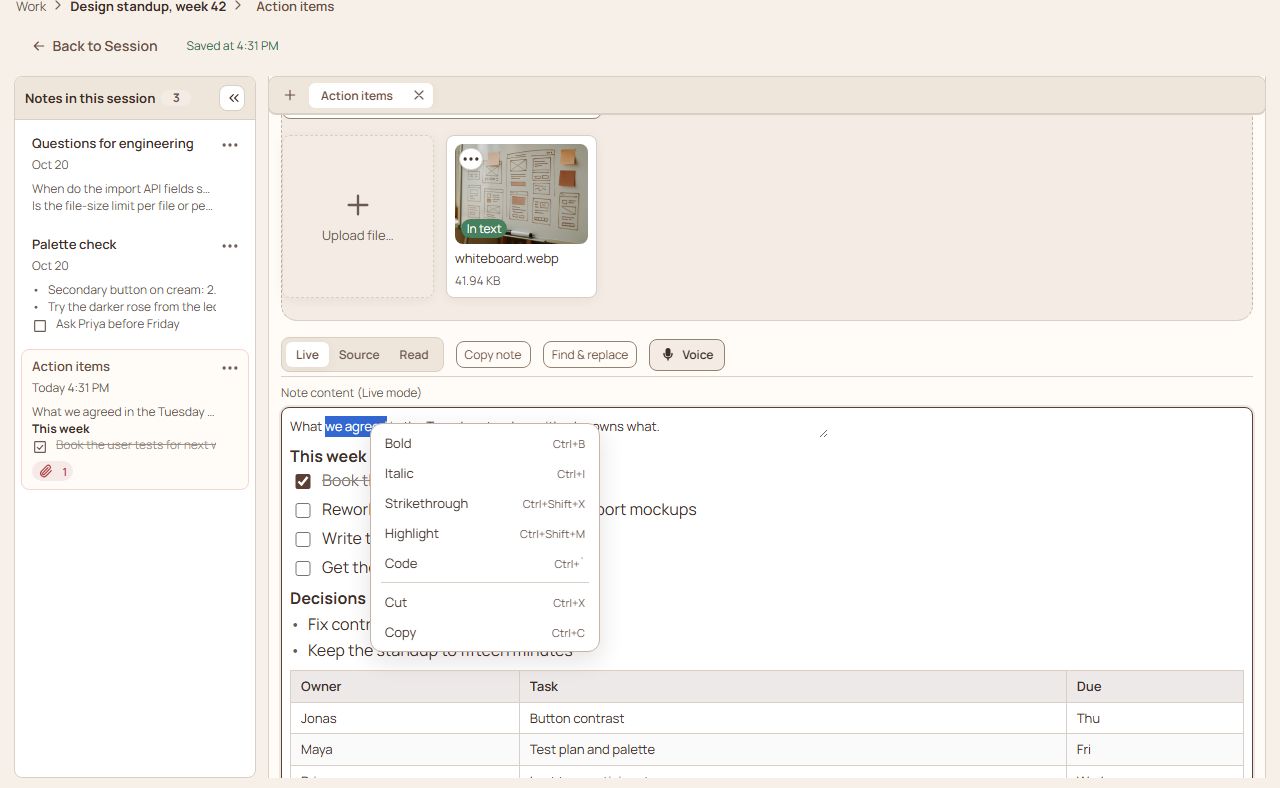
bold,italic,crossed out - Or select the words and use the keys: ⌘/Ctrl+B, ⌘/Ctrl+I, ⌘/Ctrl+Shift+X (crossed out), ⌘/Ctrl+Shift+M (highlight), ⌘/Ctrl+` (code). The same key takes the mark off again.
- Or right-click the selected words. A menu lists every format with its key beside it.
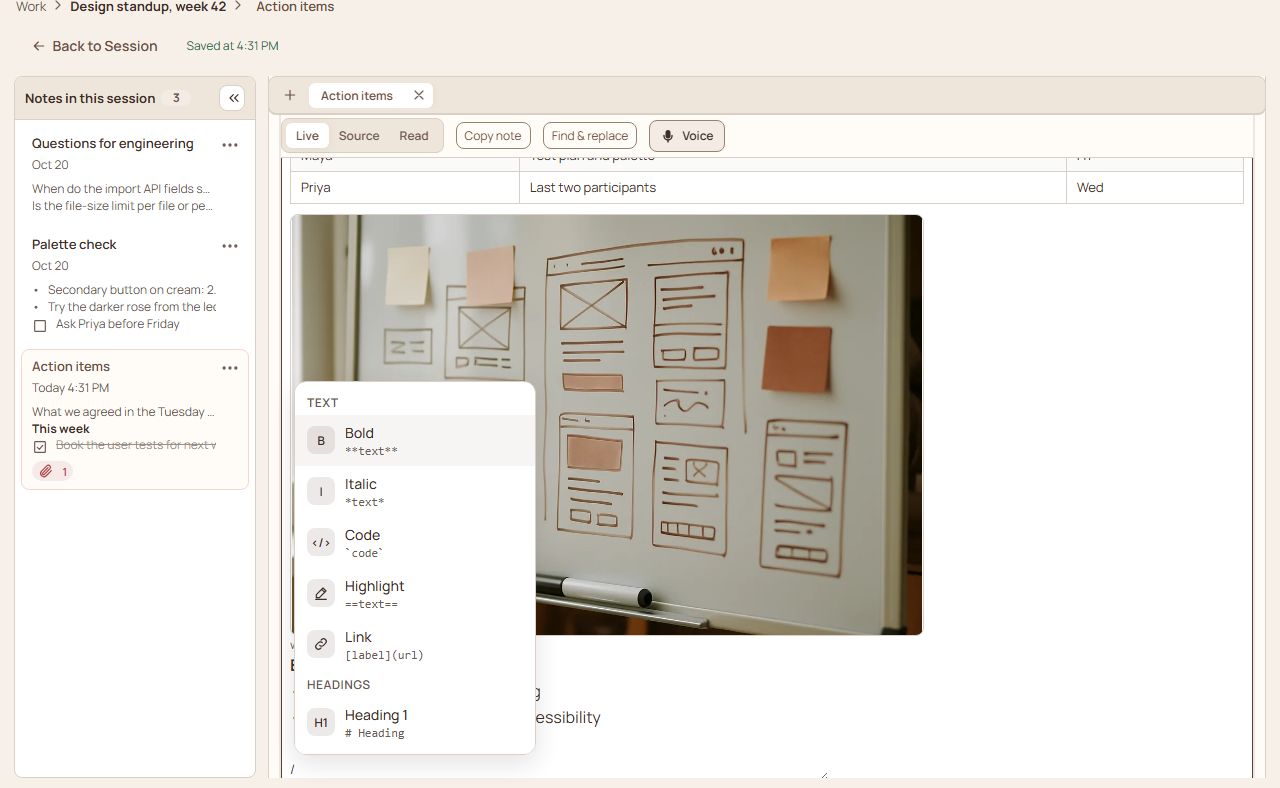
- On a phone there is no right-click and no key, so while you type in a note a row sits just above the keyboard: B and I for bold and italic, a bullet list, a checklist, H for a heading (press again for a smaller one, and again to take it off), a link, and /, which opens the menu below. Select words first and B, I and the link button work on them; with nothing selected, B and I leave a pair of marks to type between.
Headings
Heading 1
Heading 2
Heading 3
Type #, ## or ### and a space.
Lists
- A bullet list starts with a dash and a space
- Press Enter for the next bullet; press Enter on an empty bullet to end the list
- Press Tab to indent a bullet one level
- Shift+Tab takes it back out
- Press Tab to indent a bullet one level
- A numbered list starts with
1. - The numbers follow on
- Tab works here too
Tab and Shift+Tab also work on several selected lines at once (press ⌘/Ctrl+A, or Shift+↑/↓, to select lines). Press Shift+Tab again and again to flatten a nested list. With lines selected like this, typing or pasting replaces them, Backspace removes them, and cut takes them to the clipboard, so ⌘/Ctrl+A and then paste swaps the whole note for what you pasted.
Highlighted text can run across lines, and it behaves as it does anywhere else: typing replaces it, Enter splits the line there (a bullet keeps going), cut and paste take only the highlighted words, and Backspace removes only them. With some words highlighted in a line, Shift+→ or Shift+↓ at its end carries the highlight into the next line, a character at a time. You can also begin a highlight in the line you are typing in and drag the mouse up or down: it carries on over the lines you cross. Copy takes exactly the words highlighted, and highlighting words on another line leaves your place as it is.
Checklists
- ☑ A checklist starts with
- [ ] - ☐ Click the box to tick it
- ☐ ⌘/Ctrl+Shift+L turns the line you are on into a checkbox
- ☐ Indent a checkbox to make a sub-task
Tables
| What you write | What you get |
|---|---|
| A line of cells between bars | A row of the table |
| A second line of dashes between bars | The line under the header |
| Type / and choose Table | A starter table |
Cells are separated by the bar character, and the table is drawn as soon as its second line is there.
Links and videos
A link: HowYouSound. Paste an address and it stays one whole link.
A video link on a line of its own becomes a card that plays in place. YouTube, Vimeo, X, Instagram, Facebook and TikTok links all work this way, as long as the post is public, and nothing is loaded from the site until you press play:
Pictures and files
Paste a picture straight into a note, or type / and choose Image, Audio, Video or File. The picture is drawn where you typed. Hover it to resize from the corner, or remove it from the text with the ✕ (the file stays in the note's files). More in Files in notes.
Links to other notes and sessions
Type @ and start a name: a list of your notes and sessions appears. Choose one and it becomes a link, like this one to Start here. The link keeps working if you rename the note.
The / menu
Type / (on a phone, press the / in the row above the keyboard) to open a menu of everything above: text marks, headings, lists, checklists, tables, pictures, audio, video, files. Keep typing to narrow it, Enter to choose, Esc to close. The first time you open an empty note, a line above its text says so (Type / for headings, lists and files.); Got it hides it, and so does typing in the note. It is shown once on a device, in that first note only, and its Shortcuts and tips link opens Settings › About.
Three ways to see a note
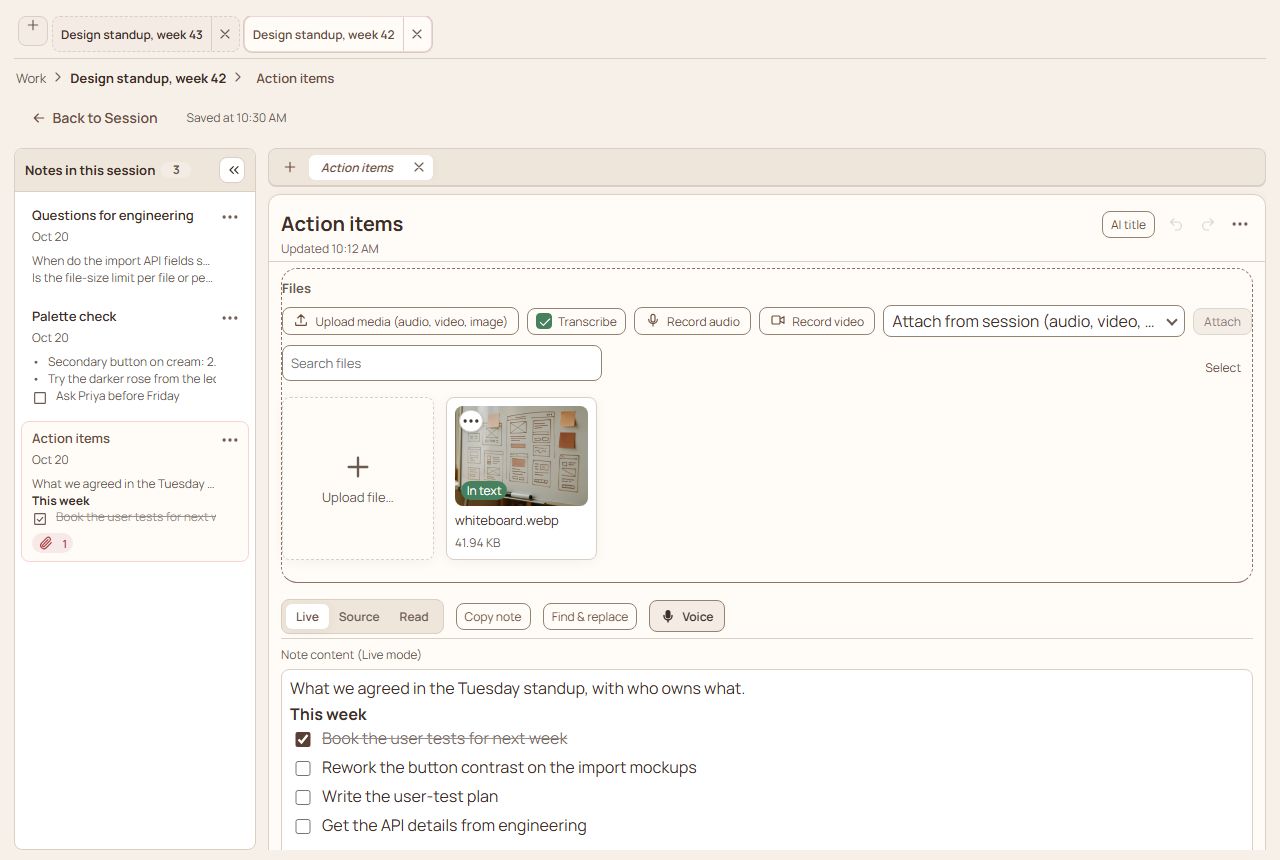
- Live (the default) draws the formatting as you type. The line you are on shows its marks.
- Source shows every mark as plain text.
- Read is the finished page with nothing to edit.
Switch with the buttons above the note, or ⌘/Ctrl+Shift+E to change between Live and Source and ⌘/Ctrl+E for Read. Copy note, on the same row, copies the whole note as plain text.
Writing with your voice
The Voice button above a note dictates into it. Pick the microphone first if you have more than one. Only the text is kept unless you ask to keep the audio in Settings: hold the pointer over the button to read what is kept, and while it records a short line beside it says so.
Undo, copy and move lines
- ⌘/Ctrl+Z undoes and ⌘/Ctrl+Y redoes, across the whole note. The ↩ and ↪ buttons do the same.
- Alt+↑ and Alt+↓ move the line you are on up or down.
- Copy a note's text and paste it into a mail or a document: the bullets, bold text, pictures and links come with it. Paste into a note from a web page or a chat answer: lists, tables and links come in as formatting, not as symbols.
- Every note keeps its versions, and you can step back to an earlier one.