Organize and find
The sidebar
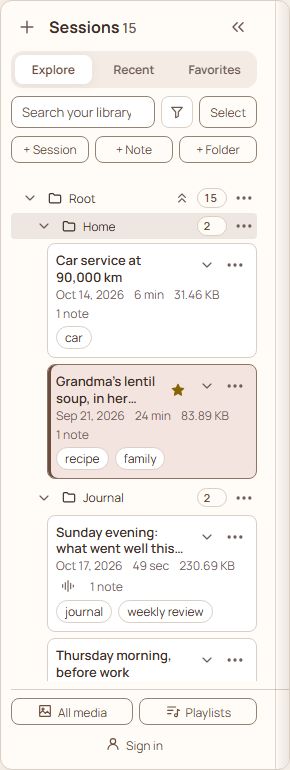
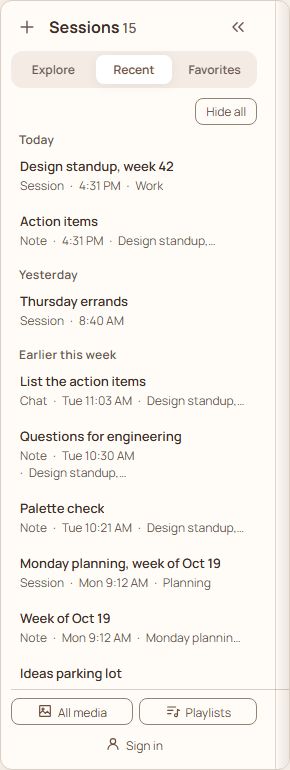
- Explore shows your folders, sessions and notes as a tree. Recent lists what you used last, newest first, under Today, Yesterday, Earlier this week and Earlier: sessions, notes and chats, each named by kind with the time it was used (a weekday this week, a date after that) and the folder it is in. Hide all, above the list, empties it without deleting anything; what you open or edit afterwards shows there again.
- The + at the top starts a new session at the top of your library. The sidebar's controls stay put: the search box keeps its width when you click in it, with the filter button and Select beside it, and + Session, + Note and + Folder share the row below. In a library with nothing in it there is nothing to search, filter or select, so only those three show, with + Session as the solid one.
- A session's row is one quiet line under its title: the date, how long it is (or its words), its size, an icon for each kind of media it holds, how many notes it has, and Chat when there is one. What AI cost shows there only when you turned on Show AI cost in Settings › AI usage, as does the AI this month line above the list. The session you have open has a bar along its left edge. A title can take two lines.
- A small mark beside a title says what it is: a pin (pinned), a star (favorite), a crossed-out eye (hidden from AI apps), a padlock (locked). Hover or press and hold a mark for its name. Folders and the cards of a folder wear the same marks.
- Favorites is the same tree cut down to what you starred. Choose Add to favorites in the ⋯ menu of a folder, session or note. A starred folder shows whole, with everything in it. A starred session or note shows by itself, inside the folders it sits in (subfolders too) and nothing else from them. Remove from favorites takes it back out.
- + Session, + Note and + Folder make a new one. A note made here belongs to no session; it lives in the folder you are in.
- With a mouse, drag a session by its row into a folder. On a touch screen, or any time, use the ⋯ on its row. Its menu is in groups, with a line between them: Rename and Move…; Pin and Add to favorites; Export (and Reveal when your library is in a folder on this computer); Lock and Hide from AI apps; and Delete last. Move… opens a window of the folders with Root for the top of the library, the folder you pick marked with a tick; once the session has moved, a small notice at the bottom says where it went, with Undo. The window opens in front of everything, from the Library tab as well as from the drawer. Opening it is a tap on the row, so the menu has no Load. A single note's menu and the cards of a folder have the same entries, with Move to a session… under Rename (it is described under Notes: everything you can write).
- A folder's ⋯ menu can create things in it, rename it, move it, pin it, add it to favorites, export it as a .zip, or delete it. Deleting asks whether to delete everything inside, or only the folder and move what is inside up a level.
- Select, beside the search box, lets you pick several sessions, folders and single notes (it says Cancel while you are picking). Select all ticks the sessions and notes that are showing in the list; the ones inside a closed folder are not showing, so they are left alone, and a search ticks just its results. Tick a folder yourself and it takes everything inside it, subfolders included; untick what you do not want. The bar then shows how many are ticked, with Move… (choose the folder to put them in), Move to a session… (only while nothing but single notes is ticked), Export (one zip, with media or the words only) and, set apart in red, Delete, which removes them in one step. If one of them is locked, nothing is deleted and the folder stays: unlock it first.
- The filter button opens Sort by and Show sessions with (two lists) and the tags. A number on the button, and a chip under the search box for each one (Sort: Title ×), say what is changing the list even while the panel is shut; press a chip to put that back. If the filters leave nothing, the list says so and offers Clear filters.
- Tap a session's row to open it. The small arrow at the end of the row shows its details (type, source, size); tap it again to fold them. Double-click the title, or press F2 on the row, to rename it in place.
- Tap a folder to see what is in it, in the main part of the screen (on a phone, this is the Library tab): its subfolders, sessions and single notes as cards, each marked Folder, Session or Note, with its marks (pinned, favorite, hidden from AI apps, locked), the first lines of what it holds, and a line of facts: the date, how long, how many notes. A session with a saved video picture shows it. Tap a card to open it, or use its ⋯ for the same menu the sidebar gives it. The path above the cards takes you back up. Closing a single note brings you to the folder it is in. A folder with nothing in it says so, with + Session in place.
- At the top of the folder's screen + Session is the one solid button, with + Note and + Folder beside it. The ⋯ at the end is for the folder itself: Copy link, Rename, Move…, Pin, Add to favorites and Delete.
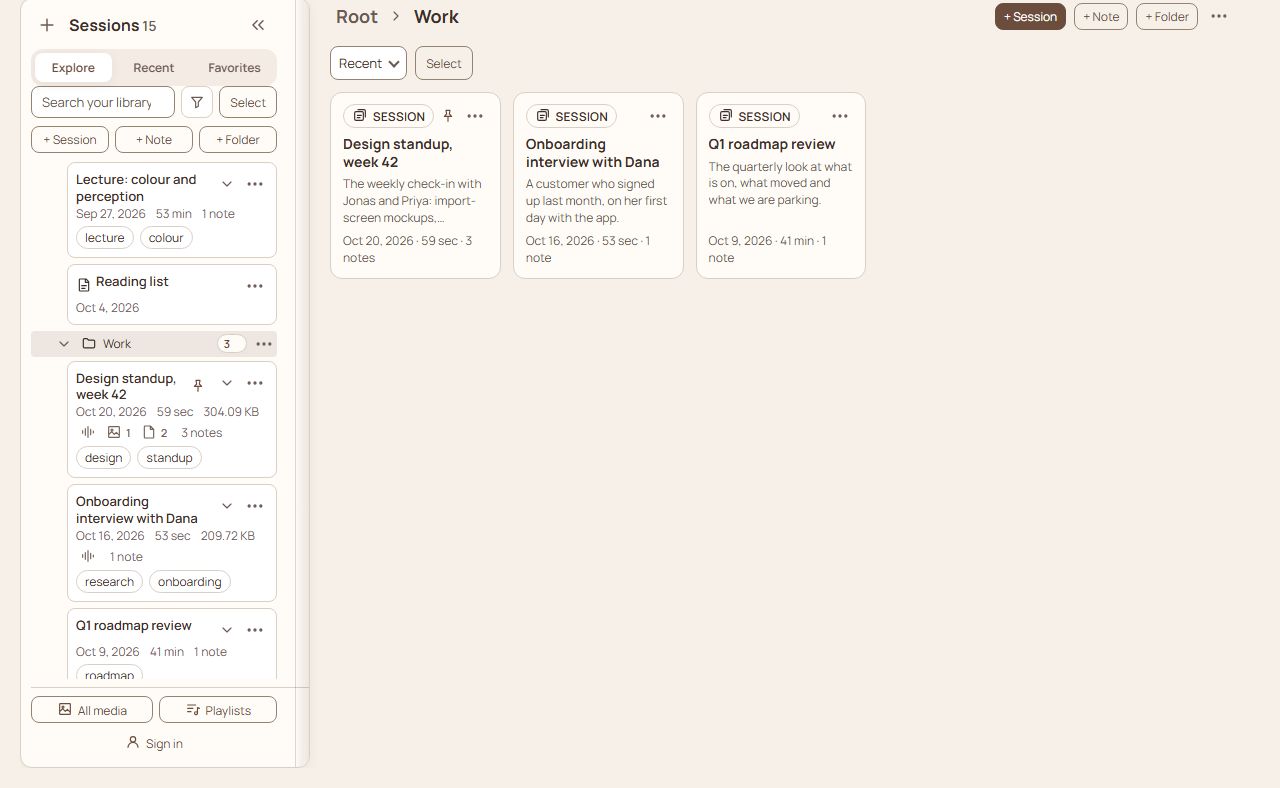
- From six cards up the folder's screen has a search box (it matches titles and the first lines), a Recent / Name / Type list (the order is remembered for each folder), and Select, which works as the sidebar's does: Select all ticks the sessions and notes showing, and the bar offers Move…, Move to a session… (when only notes are ticked) and Delete.
- A folder has an address, shown in the browser's address bar and under Copy link in the folder's ⋯ menu (
/folder/Work/Calls). Reloading, or using the browser's Back button, returns to it. Give the address to an AI app connected over MCP and it can read everything in the folder: see AI: session chat and the assistant. - A single note has its own address too (
/note/…), shown in the browser's address bar while the note is open. Reloading, or using the browser's Back and Forward buttons, returns to it; closing the note returns to its folder's address. The note has to be on the device you open it on (signed in, it arrives with your account). - At every level, what is pinned comes first: pinned folders, then pinned sessions and notes, then everything else in the usual order. Something pinned inside a folder stays in that folder; it shows when the folder is open, not at the top.
- Signed in, your pinned and favorite folders, and when you cleared Recent, follow your account, so another browser shows the same sidebar. Pinned and favorite sessions and notes travel with the sessions and notes themselves.
- All media and Playlists (and Sign in, while you are signed out) stay in a row at the bottom of the sidebar, however long the list is. The storage card is the last thing in the list: one line with the total, and Details. Under Details the bar is split by kind (text, audio, video, pictures, and Other files for what is on disk but not listed by a session), and the kinds add up to the total. Tap or press a kind in the key under the bar to read how many files it is and what share of the total. If your plan has cloud storage, the card also says how much of it is used, and from 80% it says how much is left and what to do; at the limit it says that new files are not backed up.
- On a phone (held either way up), or in a window narrower than 820 pixels, the sidebar is a drawer behind the Sessions button in the bottom bar; tap it again to close the drawer. It opens over whatever is on screen, including a note that fills the screen. From 820 pixels up (an iPad, a small browser window) the sidebar sits beside the page as on a computer; in a window narrower than 1000 pixels it starts folded to a thin strip, and the » button on the strip (or Ctrl+Shift+. , ⌘+Shift+. on a Mac) opens it.
Search
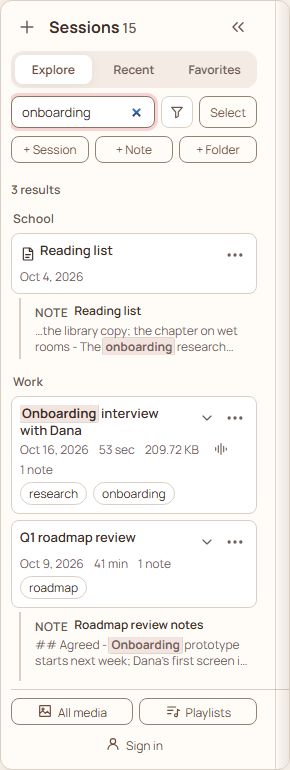
Type in the search box at the top of the sidebar. The search looks in titles, notes, chats, transcripts and summaries, and in the single notes you filed in folders, and groups the hits by folder. A line above them says how many there are (7 results), with · searching transcripts… while the transcripts are still being read, so a list that grows is not a surprise. The words you typed are marked in titles and in the lines shown. When nothing matches it says so, with the words, and Clear search brings the list back. Choose a hit and it opens at that place with the words marked. Clear highlight (or Esc) takes the marks off.
Notes of a session
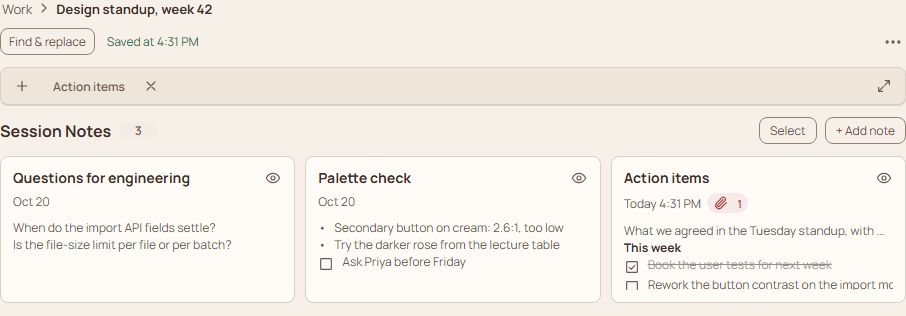
- A session with no notes shows only a sentence and + Add note; the toolbar, the tabs and the menus come with the first note. The notes of a session are cards, under one heading, Session Notes, with how many there are (the notes of a folder say Notes in the folder's name). Each card shows when the note was last edited (Today 10:54 PM, Yesterday, or a date); rest the pointer on it to see when the note was made. Open one, or press + Add note. Open notes sit in tabs: drag them to reorder, right-click for Close others, ⌘/Ctrl-click to pick several. Each note remembers how far you scrolled it while the session stays open; a note you have not scrolled starts at its top, and closing the session forgets it all. While notes cover the screen, the session tabs are still on top: choose another session there and you stay in full-screen notes, even if that session has no notes yet. Leave full screen and the next session you choose opens in the normal view.
- The eye on a card hides only that note's preview text; Hide previews in the notes ⋯ menu hides every card's at once. A crossed-out eye stands where a hidden preview would be, so you can tell a note has text.
- Select lets you pick cards and then Move to session…, Copy to session… or Delete (the red-outlined one) them. Move and Copy ask which session; Delete asks how many, and then a small notice at the bottom offers Undo for a few seconds. The notes of a folder have Select too, and there Move to a session… is the move described below.
- The ⋯ at the end of the notes' bar has only what you will use: Copy all notes as text, Hide previews, Pictures in notes and Formatting tips. To copy or move one note to another session, or to take it out of its session as a single note, use the ⋯ on the note itself, or on its row in the list.
- The expand button at the end of the tab strip makes the notes fill the window. Back to Session returns.
- Beside an open note is the list of the session's notes (on a phone it starts folded: open it with the arrow beside its title, and it runs down the screen so several notes show). On a phone an open note has the screen to itself: above its text there is only Back to Session and that folded list; the session tabs and the note tabs come back when you leave the note. Each row has a ⋯ with Open, Copy to or Move to another session, Move out as a single note, Hide preview, Hide from AI and Delete. Delete, here and in an open note's own ⋯ menu, takes the note away at once and does not ask: a small notice at the bottom says “Deleted” with the note's name and an Undo button, which brings the note back where it was. It leaves by itself after a few seconds, and stays while the pointer or the keyboard is on it.
- A note on its own (made with + Note in the sidebar) works the same way, with Back to its folder, and deleting it, from its menu, the sidebar row or its folder's cards, also offers Undo in that notice. Delete the folder and a note of it that was open leaves the screen with it.
- Moving a note between a folder and a session. On a single note choose Move to a session… (in its ⋯ on the sidebar row, on its card in a folder, in its own ⋯ while it is open, or in the bar over ticked notes); on a note of a session choose Move out as a single note… (in its ⋯, or on its row in the list). A window lists the sessions, or the folders with Root for the top of the library. Choose one and the window says in plain words what will happen before anything does: what moves (the text, and the files by kind with their size), where it lands (“It is added to” the session “as a new note, after the notes already there”, or “It is filed in” the folder “as a single note”) and what is removed from where it was. The one solid button names the result, such as Move note to “Trip”. Every file is copied and checked before the original is removed: if one cannot be read or copied, nothing is changed and a message names the file and says what to do. While it copies you see how many files are done, with Cancel, and the job is on the activity chip. When it is done the small notice at the bottom says where the note went, with Open (the session on that note, or the single note) and Undo, which puts the note back where it was, files included, and takes the new copy away. The note keeps its title, text, pictures and recordings (the pictures in the text point at the new copies), its last-edited time and its Hide from AI apps choice; a single note's pin and favorite mark are not kept in a session. A note that moves into a session hidden from AI apps, or out of one, is hidden too, and the window says so. A locked session can neither take a note nor give one up, and a note that has a change from the assistant waiting for you says Finish or discard the pending change first. Other notes that link to a note that moved out of a session stop opening it.
- The browser tab is named Note: and the note's title while a note is open, and the session's name otherwise.
- What you type is saved, and sent to your cloud copy if you use one, a moment after you pause, while the cursor is still in the line. You do not have to leave the line or the full-screen view first.
Find and replace
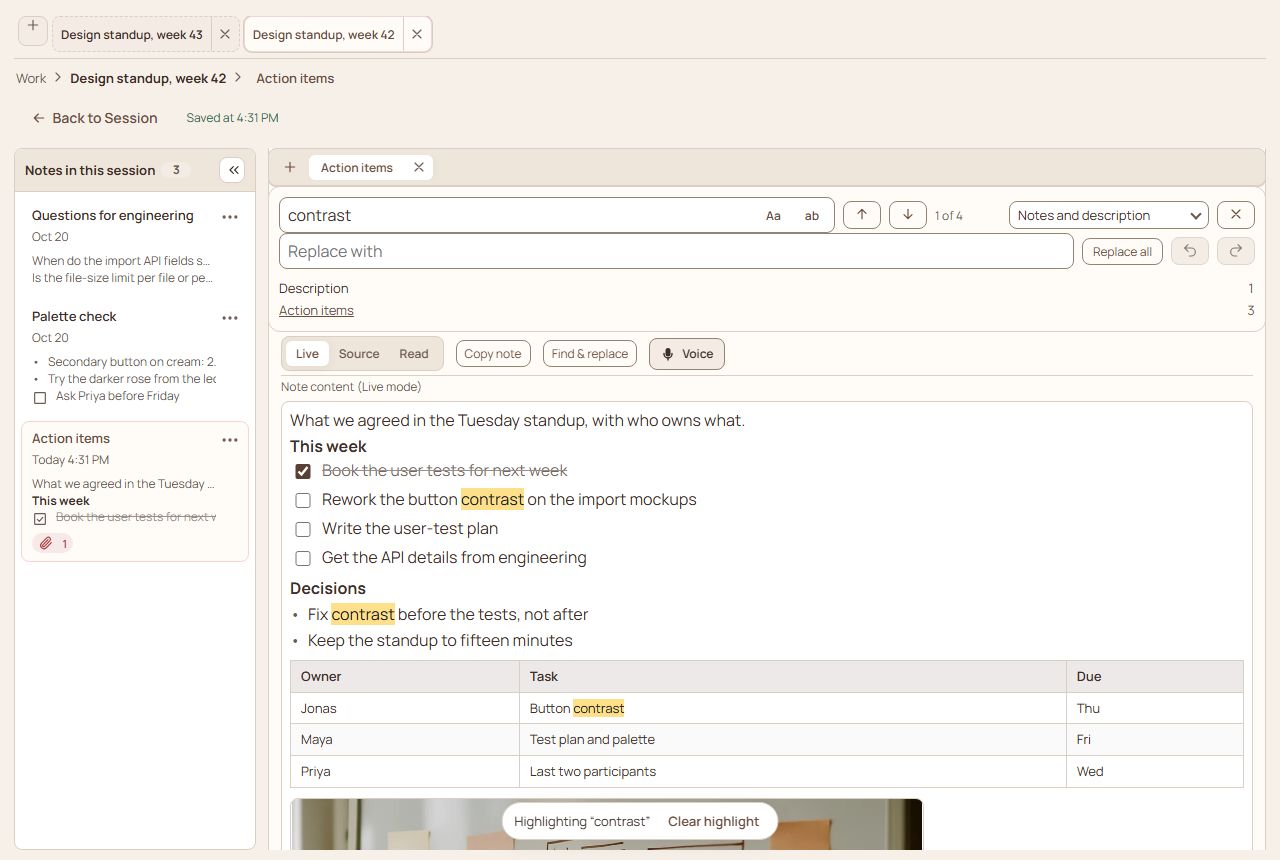
Find & replace (or ⌘/Ctrl+Shift+H, which also works while you are typing) searches the notes and the description of the session you are in. The first time a session has three notes, a line above the notes points at it (Find and replace works across all the notes), once on a device; Got it hides it, and so does opening Find & replace. While you are typing in a note, ⌘/Ctrl+F opens it too, with the words you selected already in the Find box. With a note open, the button is on the note's own row (beside Live, Source and Read), and the bar sits just above the note's text; in a long note both stay at the top while you step through the matches. On the list of notes the button is in the bar at the top. Press the button again to close it. Aa and ab, inside the Find box, turn on Match case and Whole word. The dropdown at the right chooses where to look: Notes and description, Notes only or Description only (the notes of a folder have no description, so it is not there). One count sits beside the arrows: 5 matches, which becomes 1 of 5 once you step with ↑ ↓ (or Enter), and under the bar each note is listed with its own count.
Opened with the button or the shortcut it comes with the Replace with field; a plain search (⌘/Ctrl+F from a note) opens without it, and Replace in the bar brings the field in. Replace all changes every match at once, and ↶ ↷ undo and redo it. A folder's notes have Find & replace too, in its notes' bar and on an open note's row.
Playlists
Playlists in the sidebar (beside All media, at the bottom) opens Now playing and playlists: one screen for what is playing and for the lists of audio and video behind it, which play like a music app. On a phone it fills the screen with the tab bar still under it, and Back (the button, or the swipe from the left edge) closes it; on a computer it is a large window and Escape closes it. Press New playlist and type its name over the one it gets. Your playlists are chips with their number of tracks, and the one that is playing carries a play mark. Choosing a chip only shows that playlist: what is playing carries on until you play something from the one you chose. With no playlist yet the screen says what a playlist is, and New playlist is the one button to press.
- Add from library is a view of its own, and shows the library the way the sidebar does: folders, then sessions and notes that stand alone in a folder, and inside a session its own files and its notes. Each group opens and closes (what you opened is kept while the app is open) and has Add all 5, which puts what is in it into the playlist and says how many went in, with Undo. Every file shows its whole name, what it is and how long, and where it lives under it, such as Work › Garage call › Brake plan. Search narrows the tree and keeps those places; Add all shown takes every match, and a search with no match says so and has Clear search.
- Press a file's name to try it before you add it: it opens with Play / Pause and a position bar with the time (a video shows a frame, and plays as its sound). One file is open at a time, opening another stops the first, and trying one adds nothing. The + becomes a ✓ and the word Added in the same place, and no row moves, so the file under your finger stays there. The number of tracks in the header line changes in place; View playlist shows the tracks. The bar at the bottom stays on this view too, so a file that is playing can be paused without leaving the list.
- The playlist view starts with Now playing: the track and where it comes from, a position bar with the time, Previous, Play / Pause (the one filled button), Next and Repeat (off, all, or just this track). Under it the tracks: press a name to play from there (or to pause the one playing), ↑ ↓ move a track, and ⋯ holds Open session (the session that holds it), Open note (the note, when it is a file of a note) and Show file (the file's card), and Remove from playlist, which takes it out at once and says so with Undo. A track shows its file's current name and session: rename the file, the session or the note anywhere (on this device or another) and the playlist, the bar and the lock screen read the new name; a file that is no longer in your library keeps the name it had and says Not in your library. The ⋯ beside the playlist's name holds Rename, and the red Delete playlist asks first (the files stay in your library).
- When you leave the screen the sound carries on, and a bar stays at the bottom of the app with the title, Play / Pause and ×, which stops it, and a thin line along its top for how far along it is. On a phone it sits just above the tab bar. Press the bar anywhere but its two buttons to come back to the screen, on the playlist that is playing.
- On a computer the bar also has a Minimize chevron. It folds the bar into a small now-playing card at the foot of the sidebar, above All media and Playlists, with Play / Pause, × and a chevron that brings the bar back, so nothing at the bottom of the page is covered while you work. The page always stops above the bar, minimized or not. Your choice is remembered on this device. With the sidebar folded to its rail there is no card, so the bar comes back until the sidebar is open again. A phone keeps its bar above the tab bar and has no Minimize.
- A video plays as its sound. A track that cannot be played is skipped, and the screen says which.
- On a phone, playback carries on with the screen locked, and the lock screen and headphones show the same controls: previous and next, not back and forward 10 seconds. That holds for a playlist and for a single file played from the playlist screen. A recording played from a session's own player is not a playlist, so the phone shows its plain controls there. Start it with a tap, and keep the page open in the browser or installed to the home screen: if the phone puts the page to sleep, the playlist stops where it was and the bar waits for a tap.
- Add to playlist is where you are looking at the file, so a list can be built as you go. It is in the ⋯ menu of an audio or video file: a card on a session's Files, Video and Audio tabs, a tile of the session's Gallery or of All media, and a card of a note's files (a session's note or a note filed in a folder). It is also a button in the large view of a file and beside the player under a note's files. It opens a short list of your playlists, each with its number of tracks, and New playlist…, which makes a playlist named after the session (or the note) and puts the file in it. A playlist that already holds the file shows a ✓ and Added, and cannot be chosen again. Pictures, documents and transcripts do not have the item. A file that is not saved yet, or that cannot be reached, shows it greyed, with the reason in its words.
- After adding, a notice says Added to the playlist, with Open playlist (opens this screen on it) and Undo (takes the file out again; a playlist that New playlist… made a moment ago goes with it). Adding never starts the sound and never changes what is playing. In Select, Add to playlist adds every audio and video you ticked and says how many other files it left out, such as Added 3 to Road trip, 2 skipped (not audio or video).
- With cloud sync on, your playlists follow your account: one made, renamed, reordered or deleted on one device shows on your others within a few seconds. If two devices change the same playlist, the newer change wins, and a playlist deleted on one device is deleted on the others. Without cloud sync they stay on this device. A playlist holds the list, not the files: they reach another device the way the rest of your library does, and a track whose file is not there yet is skipped, and the screen says which, until it arrives. Signing out, or removing this device's copy of the library, empties the playlists on this device (your account keeps them).
Hide things from AI
A session, or a single note, can be hidden from AI apps: use Hide from AI apps in its ⋯ menu. A hidden item still works in the app; it just is not offered to the assistants that read your library from outside.