Settings, phones and shortcuts
Settings
Press the gear at the top right. Eight sections:
- Account: sign in or sign up, your plan, credits. Signed out, Sign in or sign up comes first, with a link to use your own AI key instead.
- Storage & sync: where the library lives, what is kept, cloud files, and how much of your cloud storage is used (a bar that warns from 80% and says plainly when it is full: new files are then not backed up until you remove files or choose a bigger plan). See Where your library lives.
- Recording: the default choices a new recording or import starts with (remove noise, remove silence, transcribe, subtitles, auto-format, auto title) and whether the screen stays on while you record.
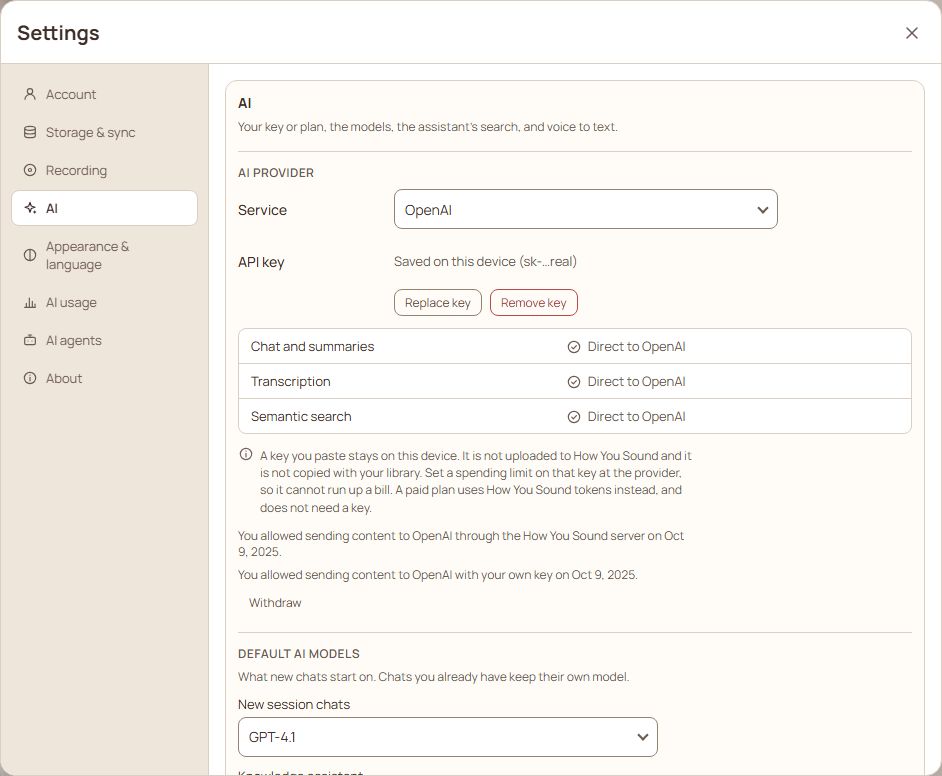
- AI: your key or plan, the default models for new chats and the assistant, the assistant's search, and voice-to-text.
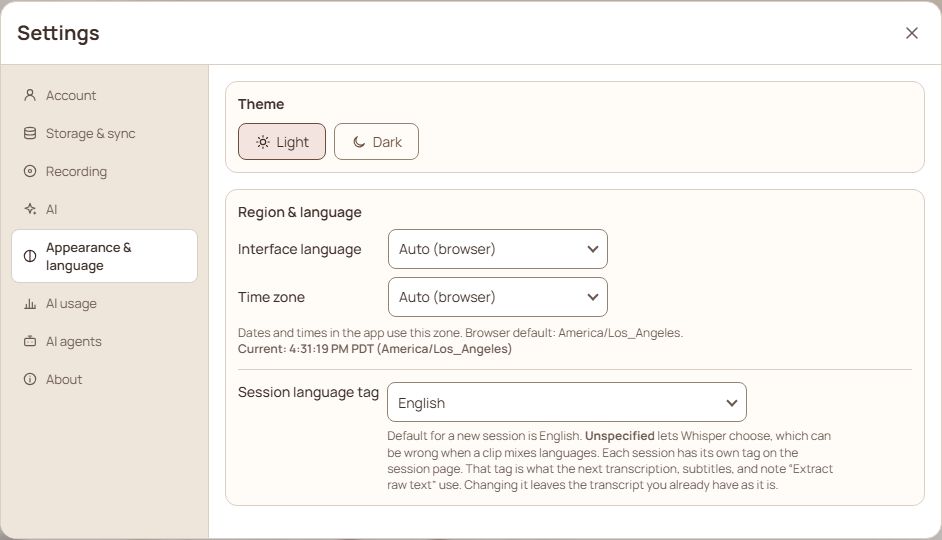
- Appearance & language: light or dark, the language of the app, the time zone and the default session language (the long lists open with a search box).
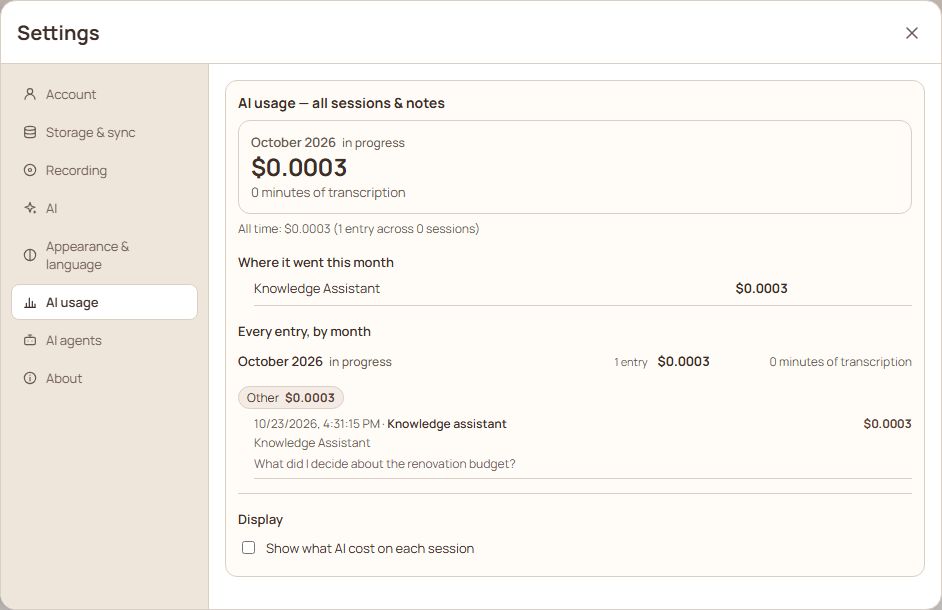
- AI usage: what the AI has cost. It leads with this month's cost in money (with the minutes of transcription and, on a plan, how much of the monthly allowance is left, in words and a bar that changes when it is nearly used up), then the all-time total, then which sessions it went on (tap one to open it), then every entry by month.
- AI agents: using an AI coding assistant on your library folder.
- About: the version, updates, Reload the app (a plain reload of the page, for when something looks stuck; nothing is lost), a Website link to the page that explains the app and has the downloads, Report a problem (type what happened and press Send; it goes with the screen you were on, your device and browser, the app version and your plan, and never the text of your notes, transcripts, recordings or keys), the User guide block, which says in a line whether your guide is up to date (and the day it was last updated): Add the user guide when it is not in your library, Open the user guide when it is, Update the guide when a newer version is out, and a See the latest online link to this same guide on the website. If you changed your copy of the guide, it is left alone: you are told a newer version exists and can choose Update and replace my changes (it asks first) or Keep mine, and the notice stays away until the guide changes again. Last, Shortcuts and tips opens the note you are reading, at the table of keys below.
On a phone
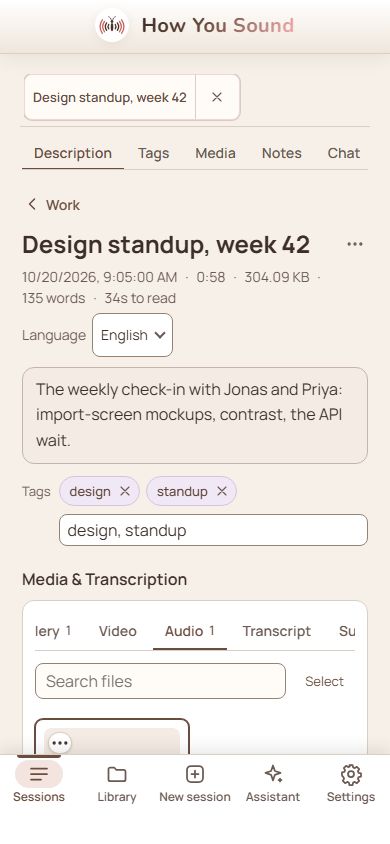
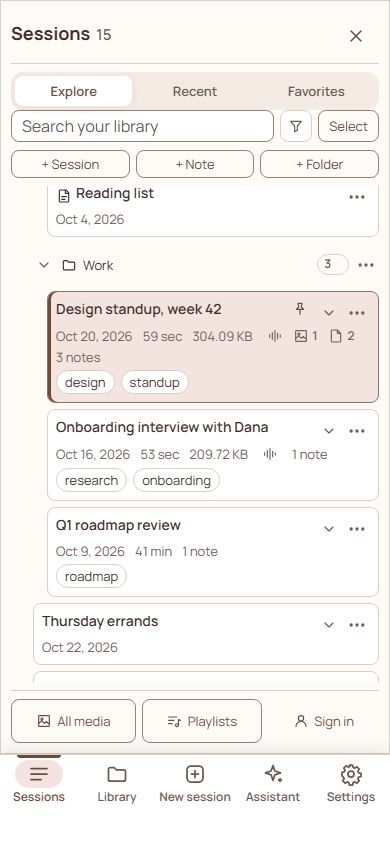
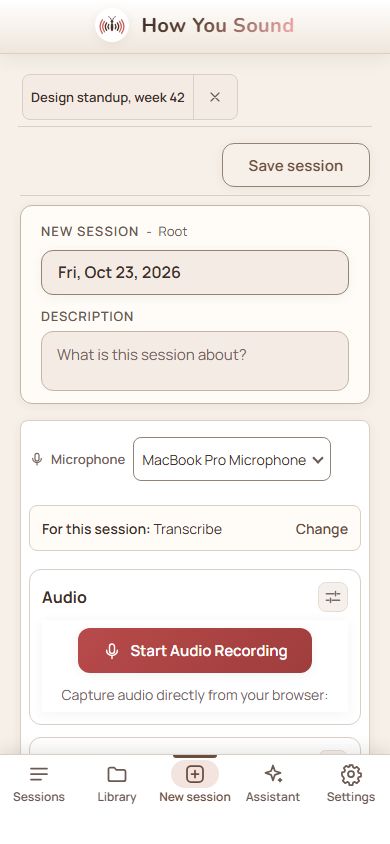
The same app, laid out for a narrow screen: a phone (held sideways too, where the screen is wide but only a few centimetres tall), or a browser window narrower than 820 pixels. Wider than that, such as an iPad held upright, you get the computer layout described above. The bar along the top carries the logo and the name (the logo takes you to the start of the app; the website has its own link under Settings › About), and it slides away as you scroll down a page and returns on the first scroll up. A bar along the bottom has Sessions (the sidebar, as a drawer), Library (the folder you were last in; press it again on the Library to scroll to the top, and once more to go up to the root), New session, Assistant and Settings, and stays in reach while the drawer and Settings are open. The tab for where you are is lit with a tinted pill and a bar along its top edge. Settings takes the whole screen. The Assistant opens as a sheet over the page, and closes when you tap another tab, open another session, or tap the page behind it. In the phone app, the yellow Sessions on this phone notice (your library is only on the phone) can be dismissed with its ×; Settings then shows a yellow dot, and the same message stays under Settings › Account, where the phone app also keeps you signed in after you close it. When decisions are waiting for you (for example parked copies to keep or discard), the Settings tab shows their number instead, in red when something is at risk. While a recording runs and you are on another screen, its red banner stays under the top bar as you scroll, and the playlist player sits just above the bottom bar. Background work (a download, a compress, a move) is named on a small bar just above the bottom bar, on every screen. Back (the Android button, or the swipe from the left edge on an iPhone) closes what is on top first: the assistant, Settings, the playlist screen, the sessions drawer, or the notes list at full screen; on a plain screen it goes back as before. Settings' sections slide sideways in a strip with a fade at the edge that has more, and the open one is brought into view. Sessions, notes, chat and the assistant work as on a computer; hover actions become always-visible handles, so pictures can be resized and removed from the text with a finger.
Shortcuts
On a Mac use ⌘ where this says Ctrl.
| Where | Keys | Does |
|---|---|---|
| Anywhere | Ctrl+Shift+K | Open the assistant |
| Anywhere | Ctrl+Shift+. | Fold the sessions sidebar |
| New session | Ctrl+Enter | Save the session |
| Notes | Ctrl+N | New note |
| Notes | Ctrl+Shift+H | Find and replace |
| Notes | Ctrl+F (while typing in a note) | Find and replace, starting with the selected words |
| Notes | Ctrl+Shift+E | Switch between Live and Source |
| Notes | Ctrl+E | Reading view |
| Writing | / | Formatting menu |
| Writing | @ | Link to a note or session |
| Writing | Ctrl+B, Ctrl+I | Bold, italic |
| Writing | Ctrl+Shift+X, Ctrl+Shift+M | Crossed out, highlight |
| Writing | Ctrl+` | Code |
| Writing | Ctrl+Shift+L | Make a checkbox |
| Writing | Tab, Shift+Tab | Indent, outdent (one line or every selected line) |
| Writing | Alt+↑ / Alt+↓ | Move the line |
| Writing | Shift+↑ / Shift+↓ | Select lines |
| Writing | ← at the start of a line, → at the end | Step to the end of the line above, or the start of the next |
| Writing | Shift+← / Shift+→ (at the end of a line or highlight) | Start or carry a highlight into the next or previous line |
| Writing | Ctrl+A | Select every line |
| Writing | Ctrl+Z, Ctrl+Y | Undo, redo |
| Writing | Esc | Leave the line you are editing |
| Chat | Enter | Send (on a phone or tablet, Enter starts a new line) |
| Chat | Shift+Enter | New line |
| Chat | Ctrl+Enter | Send, on any device |
| Dialogs | Esc | Close the open dialog without doing what it asks (a question that is open on top closes first) |
| File viewer | ← / → | Previous and next file (not while you are typing the file's name) |
| Lists and files | Shift+click, Ctrl+click | Select a range, select several |
Fixing and asking
- Something stuck on a long recording? The progress bar at the top shows what is running. You can keep working while it runs.
- The box at the bottom of the sidebar shows the oldest thing still running, as "34 of 100 done" or "34% done". A job that can be stopped has a Cancel button there: syncing with the cloud and searching transcripts can be. Cancelling a sync that is still looking for changes in the cloud takes the box away at once and says Stopped. Sync will try again later.; a file that is already being sent finishes first, and the box says so. If the cloud has said nothing for 45 seconds the box adds This is taking longer than usual. Check your connection., and after two minutes the sync stops by itself and Settings › Storage & sync says why. Work that cannot be stopped safely shows no button.
- A message about something that failed has a ✕ mark and the title Something went wrong; one that asks you to check something has a ! mark. Plain information has neither. Errors say what happened and what to do next ("Check your connection, then try again"). The technical text is under Details, and Report a problem on that message sends it to us.
- A new version is announced by a one-line notice at the top of the app, with Download (or Download and restart) and Later. Later hides it until the next version comes out. Settings › About has the details.