Files in notes
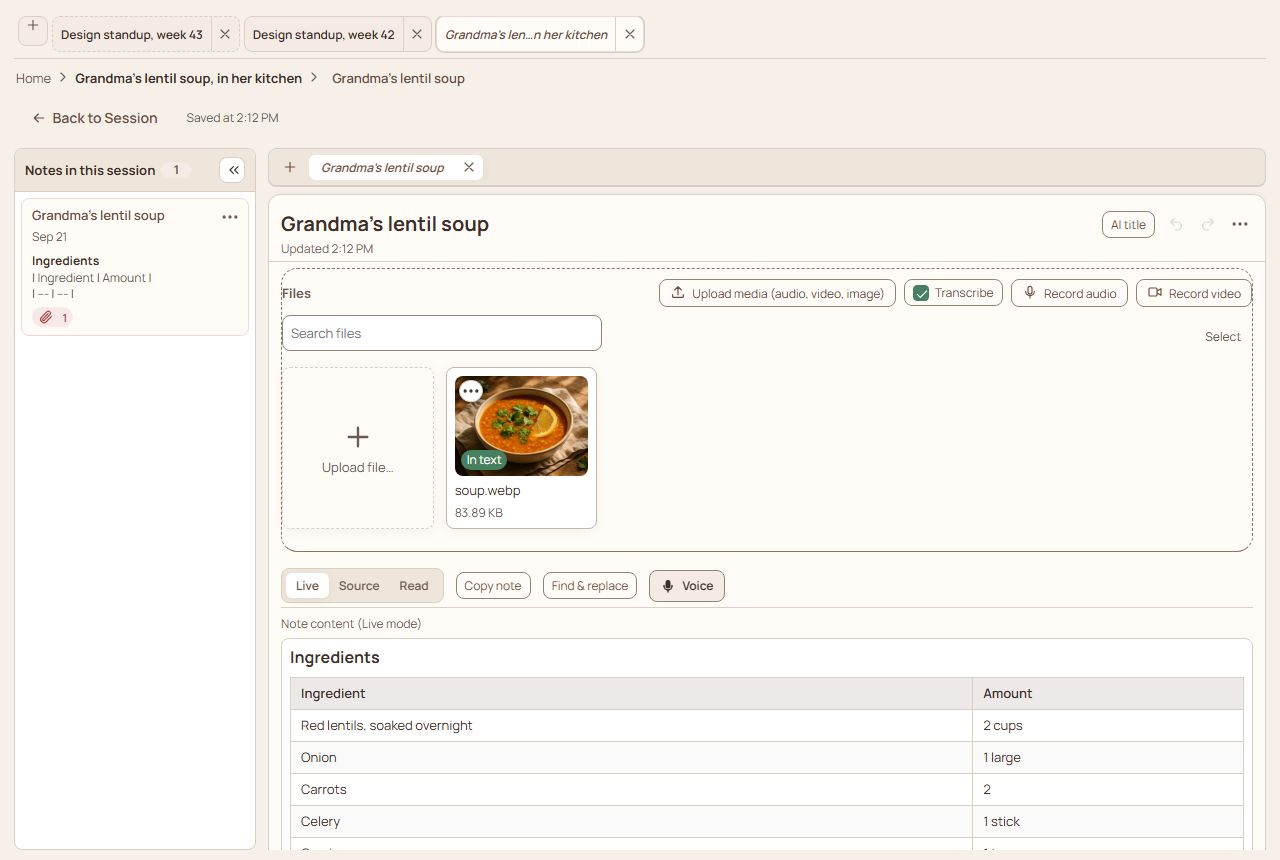
Every note has its own Files area above its text. A note with no files shows only one slim row, Files and Add, so the text starts at the top; press Add for the buttons that put the first file in. Once the note has files they show as cards, and when the files are of more than one kind a row of chips (Video, Audio, Photos, Files, each with how many) picks which to show.
Add files
- Upload media picks files. Drop files anywhere in the Files box (the slim row too, which says Drop files to add them while you drag), not only on its dashed edge, or paste a picture, to add them too.
- Record audio and Record video start recording straight into the note, after a short countdown. Stop, then Add to note.
- Attach from session adds something the session already has, such as its recording or a photo.
- A file that is being added shows a row with its name and how far it has got. A file being sent to your workspace folder has a Cancel button: it stops that file and removes it again. If a file cannot be added, its row stays, red, with the file's name and the reason, until you press Try again or Dismiss.
- The Transcribe switch next to Upload is the same one the session has.
- Audio, video and photos are shrunk when they are added, so a note does not eat your storage.
- On a phone the files show about a card and a half and scroll inside their box. Expand gives them the whole screen, and Close brings you back.
Use them in the text
- A picture that is In text has a reference in the note's words. One that says Not in text is only in the files area.
- A file's ⋯ menu has Copy reference: paste it anywhere in the note. The reference follows the file when you rename it.
- Hover a picture in the text to resize it, or to take it out of the text with the ✕. The file stays in the note's files, and its card then says Not in text.
A single note's files and the cloud
Signed in with cloud sync on, each file card of a single note (one filed in a folder, not inside a session) says where the file stands, with a mark and the same in words: In the cloud, Waiting to send, Sending… or Not sent. While some files are not in the cloud yet, one line over the cards says how many, with Send now (or Try again when a send failed). Nothing needs pressing: a note is sent a few seconds after you change it, and the app looks again about once a minute, when you come back to the tab and when the connection returns, so a file is not left behind. Without sync, or in a session's note, the cards say nothing about the cloud.
What the ⋯ on a file can do
- Rename, Download, Delete. Delete asks first and cannot be undone. The same holds in a note's large view of a file: Delete and Delete text only are quiet buttons there and each asks before it does anything.
- Generate transcript for audio and video, and Regenerate when it already has one. The transcript is kept with the file.
- Add to playlist for audio and video (and nothing for a picture or a document): see Playlists.
- Move… to another note, another session, or into the session's own files. Audio and video come back as a recording of the session, with their transcript.
- Compress video, offered on large videos that were never compressed. It runs on this computer in the HowYouSound desktop app; a video that is only in the cloud is compressed on a server instead (see Big files).
- Info opens File info, a small window of plain facts, one per row: Name, Type (Audio, Video, Picture, Document or Transcript, and the format such as MP3 or PDF), Size, Duration, Dimensions, Added, Where it lives (the folders, the session and the note), Storage, Processing (Raw recording, Processed version of the file, Silence removed, Compressed from 124 MB to 48 MB), Transcript and Hidden from AI. A fact the app does not have is left out. Technical, closed until you open it, shows the file's id with Copy. Close or Esc closes the window, and on a phone Back does too. Every file has it, last in its menu above Delete: a card on Files, Video and Audio, a tile of the Gallery or All media, a file of a note (a session's note or a note filed in a folder), the row under a player; in the large view of a file it is an Info button.
- Select several files and do any of this to all of them.
Pictures everywhere
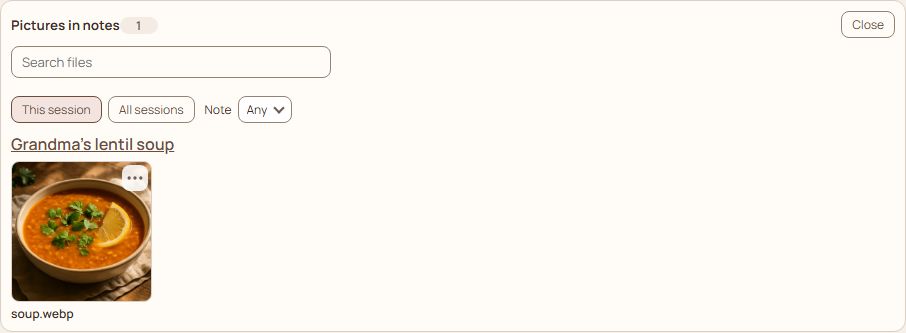
Open Pictures in notes from a note's ⋯ menu to see every picture in your notes, grouped by note. Narrow it to this session or all sessions, to one session, or to one note. A folder's notes have it too: open the folder, then its ⋯ (Folder options) and choose Pictures in notes; it groups the pictures by note.
All media, at the bottom of the sidebar, goes further: every picture, video, recording, transcript, subtitle file and file in your library, grouped by session and note. Each tile has its name under it. In a library with nothing in it, All media says so and shows no search or filters. Type in the search box at the top to find a file by its name (or the session or note it is in); when nothing matches, Clear search puts everything back. Choose a type (Pictures, Videos, Audio, Transcripts, Subtitles, Files) to show only those; a type with nothing in your library has no button. Filters, beside the search box, opens the Session and Note lists, with a number on it when you have chosen something. Those lists have a search box, and you can tick as many as you like (nothing ticked means all).
Tap any file in All media to look at it right there: a picture opens large (zoom it with a double-click, ⌘/Ctrl and scroll, or a pinch on a phone), a video or recording plays, a PDF opens in a viewer, a text file or transcript shows its text. The arrows step through everything shown. A file that cannot be shown (a zip, say) offers the download. While a file is on its way the viewer says Loading… and, if it does not come, Try again; the same goes for the files of a note. The viewer's buttons open its note or session, or Show where it is.
Every tile has a small ⋯ (always there, so a touch screen has it too). Its Show where it is closes the window, opens the session or note that holds the file on the right tab, scrolls to the file and marks it for a moment, so you can see where it lives. A recording that has a saved picture shows it on its tile.
In a note's own files the same applies: tap a PDF, a text file, a picture or a recording to look at it.
Big files
Large videos in the cloud are played from where they are, in pieces, instead of being downloaded whole when you open a note. A note with a very large video opens as fast as any other.
Download works the same way. A video that is only in the cloud is saved straight to your computer, so one of several gigabytes starts at once and your browser's download list shows how far it has got. Select several files and Download, and anything of 64 MB or more is saved one by one while the rest come in a single .zip; your browser may ask to allow more than one download. A session's own video and audio download the same way, and a file that could not be downloaded is named in a message, so nothing is skipped without telling you.
Compress video is in the ⋯ menu of a large video that was never compressed: a file of a note, and a session's own video on its Files tab (a recording or upload you kept as it came). It is offered from 24 MB up, and goes away once the video is compressed. On a large video that is only in the cloud it runs on a server, so the file never has to reach this device; while it works the card says Compressing… with the percent, and the new size shows when it is done. It keeps the sound, brings anything larger than 1080p down to 1080p (a smaller video is never enlarged) and anything faster than 30 frames a second down to 30, and makes a smaller file in H.264, which plays on every phone and browser. There is one standard setting for everyone, so there is no quality to choose. A 4K video usually comes out much smaller, and is encoded much faster than it would be at full size. A video of several gigabytes takes tens of minutes. While it works, the file's card says "Compressing…" with a percent, and the activity chip shows the same; the same goes for compressing on this computer. You can leave the session or close the app, and the note updates when it is done. A video that is already compact, or that uses HDR which cannot be compressed without changing how it looks, is left as it is and the message says why.
Compress video on a file that is on this computer does the same: up to 1080p, 30 frames a second at most, a smaller file. It does not change how videos are recorded, which is always 1080p. A very large video (256 MB or more) that is only in the cloud shows an icon on its card instead of a picture, and nothing of it is downloaded until you play it. Pressing Compress, Make it start faster or Make a smaller copy answers at once: the card says “Starting…” before the job is sent.
Smaller copy. A compressed video also gets a 480p copy, stored beside it, for phones and slow connections. A narrow screen, a slow link or "save data" plays the smaller copy on its own; everything else plays the full video. Make a smaller copy in the ⋯ menu makes one for a video stored in the cloud that has none, and then Play the smaller copy / Play full quality lets you choose for this device. The full video is never changed by this.
Make it start faster (in the same ⋯ menu, on a large video stored in the cloud) rewrites the file so its index comes first. That index is what lets a player start at once instead of first reading to the end of a multi-gigabyte file. Nothing is re-encoded, so the picture and the file's size are as they were, and it takes a few minutes. A video you compressed in the cloud already starts quickly.
Cloud video work has a monthly allowance, counted in gigabytes of video: Starter 5 GB (fast start only), Pro 20 GB, Studio 50 GB, Business 180 GB. Compressing in the cloud is part of Pro and above; fast start is part of every paid plan. A video bigger than what is left of the month is not started. Under Settings › Storage & sync, Compress big videos after they upload does it for you once a video of 24 MB or more has finished uploading from this device. It is off until you turn it on, because the smaller copy replaces the original.