Where your library lives
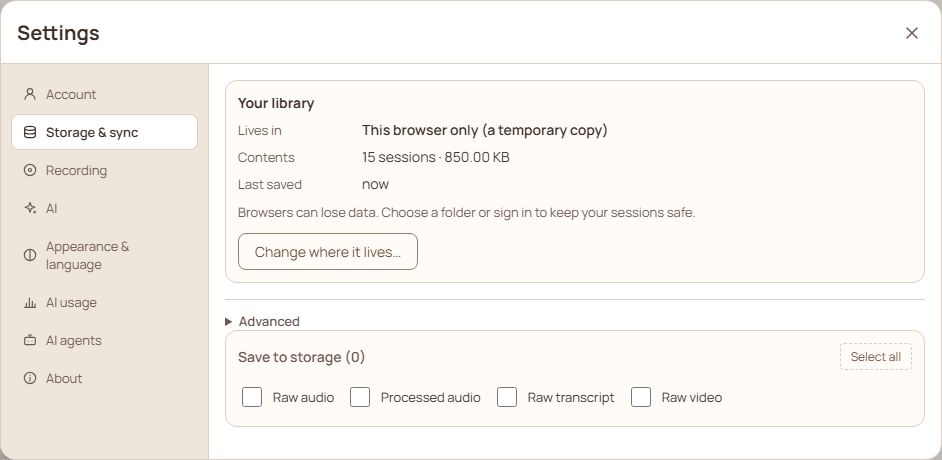
Open Settings › Storage & sync. The first thing on the tab, signed in or not, is the Your library card. It says where the library lives, in words: Folder and its path, This browser only (a temporary copy), This phone, or Your account (the cloud). Under it are how many sessions and how much space they take, when the library was Last saved, and, for a folder, whether it is Available. Reveal shows the folder in your file manager. Also kept in names your account when a copy is kept there too.
Change where it lives… opens one question with up to three places: Another folder, This browser only and The cloud. Nothing is deleted by changing: your sessions are copied to the new place first, and the files in the place you leave are never touched.
- Another folder (desktop app): pick a folder and the app shows what it will do in numbers: how many sessions and files will be copied and how big they are, how many are already there, how much room the drive has. Move my library to … copies them and then switches. If the folder already holds a library of its own, you are asked first whether to open just that folder or move your library into it.
- This browser only (desktop app, leaving a folder): the sessions stay in this browser only, and browsers can lose data, so this is a temporary copy. The app first checks the size of your recordings and pictures against the room the browser reports. If they fit, they are copied into the browser. If they do not, the choices are Keep notes and transcripts only (recordings and pictures stay in the folder, and the card says which sessions' files are unavailable until you open that folder again) or Cancel.
- The cloud: signed out, Sign in opens the sign-in window and you come back to the card. On a plan with cloud storage it points to the three choices below. On the free plan it says Cloud storage is part of a paid plan, and See plans opens your account.
Moving is a job: the card shows a bar with the bytes and the sessions done, and it stays on the activity bar if you close Settings. Cancel move stops it between two files. If you reload, it carries on where it was. If a file does not go across, the move says which one and why, does not call itself done, and Try again copies only what is missing. Your library only switches to the new place once everything is there.
Under the card, Places you have used on this computer lists the folders the app remembers, each with its name, path and how many sessions it holds, or Unavailable when its drive is not connected, and This browser with its count. Open asks the same question as choosing the folder. Forget only takes the place off this list (an Undo is offered); it never touches the folder, its files or your account.
When the folder cannot be reached (a drive that is unplugged, or a folder that moved), the card says so and offers three ways out: Try again, Choose another folder and Use the browser copy. The last one works from what the browser already holds and says which recordings and pictures are only in the folder. Nothing is deleted.
When you are signed in on a plan with cloud storage, a library can live in three ways:
| Choice | What it means |
|---|---|
| This device only | Nothing is uploaded. In a browser the only copy is in that browser; in the desktop app it can be a folder you choose |
| Device and cloud | A full copy in both places. Everything works offline. Uses the most space |
| Cloud, streamed | The cloud holds everything. This device keeps what you open: text first, then images, audio and, last, video |
Above the sync buttons, Cloud sync says what the next sync will do, in words: Next sync: add 3 to your account, bring 2 here, merge 1. It appears only when there is something to do. What will change under it lists each session with what happens to it, as an icon and a word; anything that deletes or replaces (Delete here, Replace in your account) is also written in red. Sync now goes straight ahead when the sync only adds, updates or merges. When it would delete a session here (because you deleted it on another device), replace one version with another, or this is the first sync from this computer, a question called Before syncing lists every session first, with Cancel and Sync now. Cancel changes nothing. The sync that runs by itself while the app is open is not asked first.
When two devices changed the same session, sync settles it without asking: it combines both, or keeps the version that holds more, and it never replaces work that only one device has. Settled automatically, under Cloud sync, lists the last 20, newest first, with a count in its heading; it starts closed. Each entry names the session (select the name to open it), when it was settled and what happened. Put the other version back restores the version that was set aside, after See both versions if you want to compare. Bring it back returns a session another device deleted, from the notes this computer or your account kept of it; recordings, photos and files were removed with the deletion and do not come back. An entry that cannot be undone says why (for example, a merge dropped nothing). Using one is logged in the same list. Clear this list removes the list only; no session or version is touched. The line after a sync, such as 1 conflict settled on its own, opens this list.
- The three choices appear only when you are signed in on a plan with cloud storage. Signed out, or on the free plan, there is nothing to choose between, and the Your library card shows where your library is: in the desktop app, the folder you chose; on the website, Sessions in this browser are only a temporary copy; on a phone, Sessions on this phone, kept in the app's own storage. Signing in on a paid plan adds the three choices.
- The desktop app can keep the library in a folder on your computer: choose it with Change where it lives… on the Your library card. A browser cannot open a folder, so a library in a browser stays in that browser or goes to your account.
- In Cloud, streamed, the files this device keeps are only a cache. You never need to look after it: files that nothing uses any more are removed on their own, and Keep up to sets how much the cache may hold. On a phone it is Automatic unless you pick a number: about a quarter of the space the phone has free (between 1 and 20 GB), always leaving room for everything else. Only copies already in your account are ever removed, so a smaller cache costs a download later, never a recording.
- On the website, a browser cannot open a folder. Sessions you make there are kept only in the browser's own cache: the browser can clear it, and it is not backed up or synced to your other devices unless you are signed in on a paid plan. A one-line yellow note above the app says so (Only a temporary copy in this browser, with Show). It opens by itself the first time you save a session, and Minimize folds it again. Open, it has two ways out: install the app to keep sessions in a folder (free), or sign in and choose a paid plan to keep them in the cloud. Recording, notes and files work either way.
- The yellow notice "the only copy is in this browser" is a reminder to choose a folder or turn on cloud sync. Nothing is lost by ignoring it, but a cleared browser would lose the library.
- Save to storage lists what is kept on this device: raw audio, processed audio, raw transcript, raw video. When a message says to turn on Raw audio, Raw video or Processed video, this is the list it means.
- Export on a session or a folder makes a .zip you can import again, here or on another computer. It asks what to include: everything, with the audio, video, photos and files, or text only, which keeps the notes, chats, summaries and transcripts and leaves the media out, so the .zip is small and quick. An export that is taking too long can be stopped: press Cancel on the progress bar in the sidebar, or choose Cancel export from the same menu. Nothing is downloaded.
Accounts and plans
The Account tab handles sign-in and your plan. Sign in or sign up opens with the cursor in the email field. Create an account asks for the password once, shown as you type so a typo is easy to see (Hide hides it again), and Email me a link instead shows a Check your email screen with Resend link (available again after 30 seconds) and Use a different email. In the phone app, the sign-in window also offers Continue with Google when Google sign-in is switched on: the usual Google button, with the Google "G", the width of the window. It opens your phone's browser to choose the Google account, then brings you back to the app signed in. If the browser cannot be opened, the window says so and the email options still work. If Google does not finish (you close the browser, or Google refuses), the window says Google sign-in did not finish. Try again, or use an email link. and the button is ready to press again. The phone app keeps you signed in when you close it or restart the phone, until you press Sign out. The first time you sign in on a computer, the app asks How should this computer sync?; Leave this computer alone is already selected and changes nothing, and you can change it later in Settings › Storage & sync. Not now: sign me out leaves the question without choosing anything and signs you out again; the computer's own copy stays. On a plan with no cloud storage the question offers only that safe choice, says Cloud storage is part of a paid plan, and See plans opens Profile & plan. Profile & plan shows what you use and the plans on offer. Switch to this plan asks first: it names both plans and says how the price, the cloud storage and the included transcription change. Its answer appears on the card of the plan you chose, beside the button you pressed. A paid plan includes cloud storage, a monthly allowance of AI credits, and the MCP connection (see AI: session chat and the assistant). Without an account you can still use the app with a key of your own for AI.
AI credits are one pool for everything that uses AI on your plan: transcription, chat, the assistant, search, titles and summaries. A credit is about a minute of transcription. A short chat or a title is usually a credit or two, and a long transcript sent along as context costs more. When the credits are used up you see an AI needed message and everything else keeps working. A key of your own (Settings › AI) does not use them.
Sign out asks what becomes of this computer’s copy of your library whenever it holds sessions or notes. The question says how much is here in words (for example “126 sessions, 2.4 GB on this computer”). Sign out and keep this computer’s copy is already selected: you are signed out and nothing else changes, so the library is here the next time you sign in. On a shared computer choose Sign out and remove this computer’s copy… instead. It asks once more, naming what goes (“Remove 126 sessions from this computer? Your account keeps its copy. Files in a library folder are not touched. This cannot be undone.”). Export everything first… makes the same zip as selecting everything in the sidebar and choosing Export, then brings you back to the first question. Removing shows how far it has got (“Removing 12 of 126…”) and can be found on the activity bar if you close the window; it survives a reload and carries on. If something could not be removed it is named, stays where it is, and Try again is on the Account page; it never says it is done when it is not. It removes this computer’s copy only: your account keeps its sessions, a library folder keeps its files (the app just stops using the folder), and nothing is sent to your account as deleted. When the library is empty, Sign out signs out at once, with no question.
If you sign in as a different account on a computer that holds sessions another account saved, Settings › Storage & sync asks whose they are. They are mine — sync them adds them to the account you signed in to. Export them first… saves them as a zip and leaves the question open. Remove them and use my cloud data… asks again, and then removes them from this computer only: the other account and any library folder are not touched, and your own cloud data is downloaded here.
Delete account (Settings › Account) permanently deletes your account and the sessions and files stored in it, and cancels a paid plan right away. It asks first, and it cannot be undone. Sessions kept only on your own device are not touched. You can also ask us to do it by email, as the Account deletion page on the site explains.
Safe by default
- Sessions can be locked so they cannot be deleted by accident.
- Deleting a folder asks what to do with what is inside.
- Larger changes (moving, deleting cloud files, replacing text everywhere) ask first.